
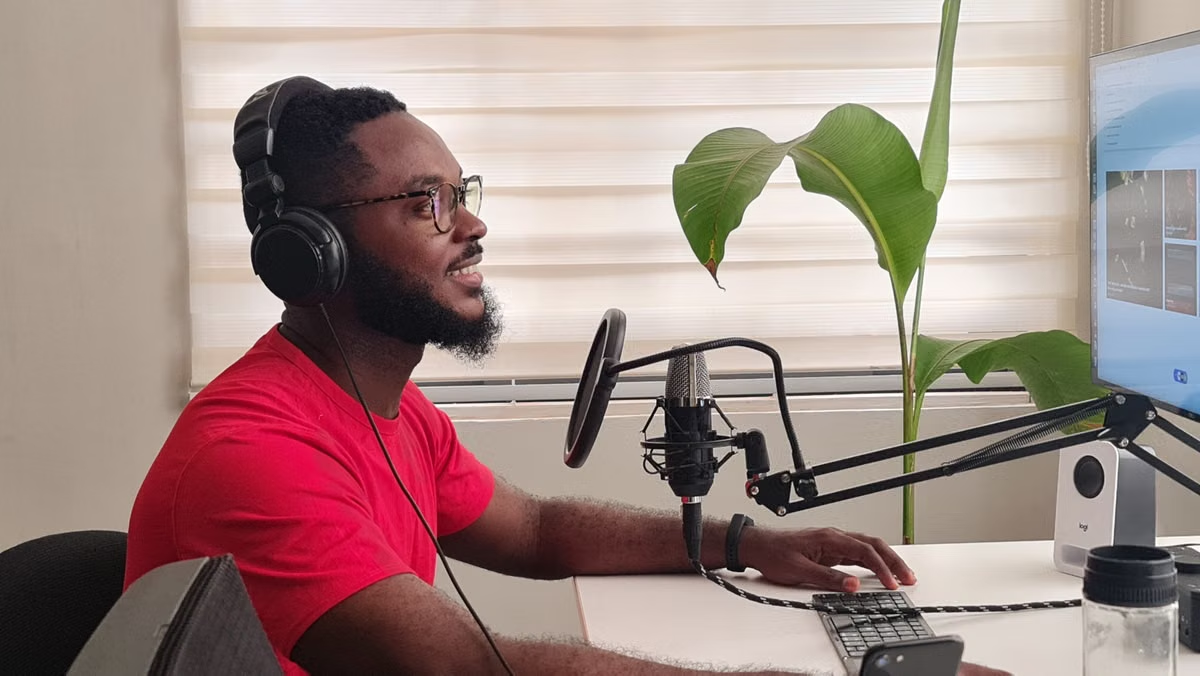
VoiceStudio’s official voice-cloning guide describes an audio sample as the starting input for creating a voice. That means you can begin an AI voiceover workflow with a recording; it does not mean any recording will produce a publish-ready result without review.
Signal: You want to use your own voice, but you’re unsure whether a single recording is enough.
Fastest route: Check VoiceStudio’s current input requirements, submit a clear recording you’re authorized to use, and listen to a short generated passage before making the full voiceover.
This guide is for creators preparing narration for videos, podcasts, or other content; individuals trying to keep recording preparation manageable; and anyone deciding whether VoiceStudio fits a personal voiceover workflow. If you need a guaranteed finished result from an arbitrary clip, the documented starting point alone cannot promise that.
What “starting with one recording” really means
The important distinction is between starting the process and completing a usable voiceover. VoiceStudio’s materials describe voice cloning as a workflow that begins with voice audio, but the result still depends on what you provide and what the current app supports. The voice-clone workflow description is the right place to confirm how the current process is meant to run.
A recording is an input, not a quality guarantee. A clip with competing speech, room noise, clipped words, or inconsistent delivery may make it harder to assess whether the generated voice suits your script. Even with a clean sample, you should expect to review pronunciation, pacing, tone, and consistency before using the result.
There are two separate decisions:
- Can you begin? Check the current workflow and whether the app accepts your recording.
- Can you publish the output? Listen to the generated result in context and decide whether it meets the needs of that specific project.
This framing keeps the title’s promise in proportion: one recording may get you into the workflow, but it does not remove the need for setup, listening, and possibly a better source take.
Recording preparation that avoids preventable failures
Before recording, check the voice-cloning guide and the import options in your current VoiceStudio installation. Use the official guidance for supported formats, duration, and other input conditions. The available references should not be treated as proof of a specific format or minimum recording length unless the current documentation or app explicitly states it. The desktop guide collection and the cloning guide are useful places to verify those details.
For the recording itself, aim for a take that lets you clearly hear the voice you intend to reproduce. These are practical quality checks, not claims about a VoiceStudio-specific threshold:
- Keep other voices and avoidable background sounds out of the take.
- Speak naturally and clearly. Don’t force an unnatural character voice unless that is the sound you want to test.
- Avoid rushing through words or trailing off at sentence endings.
- Use a passage with a mix of ordinary words and the names, terms, or pronunciations that matter in your project.
- Listen to the source file before uploading it. If the recording is hard for you to understand, it is a poor candidate for a reliable first test.
Only submit your own voice or audio you are authorized to use. VoiceStudio’s acceptable-use rules are the relevant source for permitted voice use. Permission to use a recording and permission to use the resulting voice are not assumptions you should make for someone else’s voice. Confirm the applicable terms before you create or publish anything based on another person’s audio.
A cautious route from recording to first output
Use the current in-app workflow as the authority. Official guides can explain the intended route, but app layouts and control names may change. The getting-started guide covers initial generation, while the workflow guide explains the voice-cloning path. Avoid relying on a button label or control that you have not confirmed in your version.
- Check the current instructions. Open the voice-cloning and getting-started guidance. Confirm the supported input conditions and whether your intended use is allowed.
- Choose an authorized source recording. Start with audio you own or have permission to use. Make a separate copy for upload so your original remains unchanged.
- Review the file before import. Play it from beginning to end. Listen for missing sections, unintelligible speech, clipping, and distracting sounds. If the app rejects the file, compare it with the current import requirements rather than guessing at a conversion setting.
- Select the voice-cloning workflow. Follow the options presented in the current app. Provide the recording when requested, then complete any prompts or selections the workflow requires. Don’t assume a specific button name or optional feature without checking the interface.
- Create or select the resulting voice. Complete the steps shown by VoiceStudio. If the app presents model choices or settings, review the official model-management guidance instead of changing settings blindly.
- Enter a short test passage. Choose a sentence that resembles your intended script. Include a term or pronunciation that would reveal a problem, rather than testing only a simple greeting.
- Generate and listen before scaling up. Review the sample with headphones or another setup that makes speech defects easy to hear. If the app offers another generation or adjustment, use only controls actually available in your version. Otherwise, revise the script or recording and follow the documented workflow again.
- Keep a decision record. Note which source recording and text you tested. This makes it easier to tell whether a later result changed because of the audio, the script, or an in-app choice.
| What you’re checking | If it passes | If it fails |
|---|---|---|
| The app accepts the source file under its current requirements | Continue to the voice-creation step | Check the documented input conditions; don’t repeatedly upload an unsupported file |
| Speech in the recording is easy to distinguish | Use it for a short test | Record again in a quieter setting or choose a clearer take |
| The generated passage is understandable and fits the project | Test a longer, representative passage | Review the source and script; retry only if the current app supports it |
| You have the required rights for the source voice and intended use | Continue with the planned use | Pause and confirm permission and applicable terms |
Listening checks before using the voiceover
Treat the first result as a sample for evaluation, not as proof that the voice is ready for a full episode or video. A short test passage is easier to compare with your own speaking style and easier to replace if you find a problem.
Listen for four things:
- Clarity: Can you understand each word without replaying the passage?
- Pronunciation: Does the output handle names, abbreviations, and specialist terms correctly?
- Pacing and emphasis: Are pauses and stressed words appropriate for the script, rather than distracting or confusing?
- Voice consistency: Does the sound remain recognizably aligned with the voice in your source recording across the passage?
A useful test passage is representative of your real work. For a podcast, use a line with the conversational rhythm you normally use. For a video, test a sentence that includes the kind of names or technical language in the final narration. One polished greeting is not a sufficient test if the full script has different vocabulary and pacing.
If a result does not work, first identify the specific defect. A mispronounced name may call for a script change or a documented setting, if available. Noise or indistinct speech in the original may call for a cleaner take. A flat delivery may be a reason to test different text or review the current controls. Don’t claim that VoiceStudio can fix a particular problem unless the current documentation or interface confirms that capability.
A creator scenario
Suppose you make short tutorial videos and want to narrate a script in your own voice without recording every revision. You have a clean sample and a draft script. Start by testing one paragraph that includes a product name or technical phrase you use often. If the output is clear and consistent enough for your audience, try a longer sample before committing the full script. If that first paragraph sounds wrong, you have evidence to revise the recording or workflow before spending time preparing the entire narration.
Common problems, permissions, and privacy
When an import fails, check the current format and input conditions first. Then confirm the file plays normally outside the app and that the upload is complete. If the recording is accepted but the result is unclear, compare the source with the generated passage. That helps distinguish a source-audio problem from an issue in the text or generation process.
When output quality is disappointing, don’t assume the app guarantees a particular accent, emotional delivery, pronunciation, or match to your original voice. Check the current model and workflow guidance, then test a revised passage or cleaner recording if the interface supports that route. The official guides—not a general expectation about voice-cloning software—should determine which controls you can use.
Privacy needs a separate check from audio quality. Uploading audio can involve handling and retention rules that matter even when the voice belongs to you. Read VoiceStudio’s privacy information and data-retention policy before submitting personal, client, or unpublished material. Do not infer that an upload is deleted immediately, kept indefinitely, or used in a particular way unless the applicable policy says so. If you cannot confirm a rule that matters to your work, ask the service or avoid uploading sensitive material.
FAQ: recording and first use
Can I create my voice in VoiceStudio from a single recording?
A recording can be the starting point described by VoiceStudio’s voice-cloning material. That does not establish that every recording will be adequate or that one take will create a final voiceover without review. Check the current workflow and app requirements, then use a short passage to judge the output before preparing a longer script.
What should I prepare for a VoiceStudio voice-cloning test?
Prepare a recording that is clear enough for you to understand, and make sure you have the right to use it. Then check the current official import guidance for supported file conditions. Avoid relying on an assumed duration or format. A short, representative text passage is also useful for testing pronunciation, tone, and pacing after the voice is created.
What is the basic VoiceStudio voiceover process?
Confirm the current instructions, select the voice-cloning workflow, provide an authorized recording, and complete the choices the app presents. Then create or select the voice, enter a short passage, and generate a sample. Names and available controls can change, so follow the interface you see rather than a remembered button sequence.
Should I edit or regenerate a VoiceStudio result before publishing?
Listen first, then decide based on the actual defects. Check clarity, pronunciation, pace, and consistency with the source voice. If the current interface offers regeneration or adjustments, use the documented options; if not, revise the source recording or script and test again. Publish only when the sample meets the standards and permissions required for your project.
Final pre-use checklist
Before you move from a test to a full narration, check each item:
- [ ] The recording meets the current VoiceStudio input requirements shown in the official guide or app.
- [ ] You can understand the source audio without struggling to separate the voice from background sound.
- [ ] You own the voice recording or have permission for the intended use.
- [ ] You have reviewed the applicable voice-use rules and privacy and retention terms.
- [ ] You generated a short sample using text that represents the actual project.
- [ ] You listened for clarity, pronunciation, pacing, emphasis, and voice consistency.
- [ ] You have confirmed which re-generation or adjustment options are actually available in your version.
- [ ] You are satisfied with the result for the specific publishing context, not just in isolation.
If the input is accepted and the sample passes those checks, continue with a longer passage and review that before publishing. If the source is hard to understand or the sample has a clear defect, pause and improve the recording or test text instead of assuming the full script will turn out better.
When a remote Mac workflow belongs in the plan
VoiceStudio’s own workflow and policies determine whether the recording and generated voice are suitable; a separate computer setup does not prove compatibility or improve voice quality by itself. If you already handle audio files, scripts, and other production tasks on a Mac, keep those tasks separate from the question of whether VoiceStudio accepts your source. You can review remote Mac use cases to see whether a remote Mac fits the wider production workflow. Before choosing a provider for that wider workflow, review Kvmzen’s background and service information and compare it with your access, file-handling, and support requirements.
A remote Mac may be useful when you need a temporary Mac workspace for broader content-production tasks, but it is not a substitute for checking VoiceStudio’s current requirements. If your existing setup is already dependable, a new environment may add file-transfer steps, remote-session latency, and another place to manage access. For occasional testing or a short project, compare those trade-offs with using your current computer before changing your workflow. Start with one authorized recording and a short listening test; let that result—not the promise of a one-recording shortcut—decide whether you proceed.
Frequently asked questions
What kind of recording should I prepare for VoiceStudio?
Start with a recording in which your voice is easy to distinguish from other sounds, and use audio that you own or have permission to use. Check VoiceStudio’s current voice-cloning instructions and the import options in your installed version before recording or converting files. Do not assume a particular format, duration, or noise threshold unless the current official guidance states it.
Can VoiceStudio create my voice from just one recording?
An audio sample can be the starting input for the documented voice-cloning workflow. That answers whether you can begin with a recording; it does not establish that every single clip is sufficient, or that the resulting voice will be ready to publish without review. Follow the current workflow and judge the output with a representative listening test.
What are the basic steps for making an AI voiceover in VoiceStudio?
Check the current guide and app first, then select the voice-cloning workflow, provide an authorized recording, and complete any choices the app requests. After the voice is created or selected, enter a short test passage and generate a sample. Review it before using a longer script. Interface labels and available controls may differ by version.
Do I need to listen to or edit a VoiceStudio voiceover before using it?
Yes. Listen for unclear words, unnatural emphasis, pacing that does not fit the script, and changes in tone compared with your source recording. If the result is weak, check whether the current interface supports another generation or adjustment, or improve the source recording and try again. Treat a generated sample as unapproved until it passes your intended use check.