
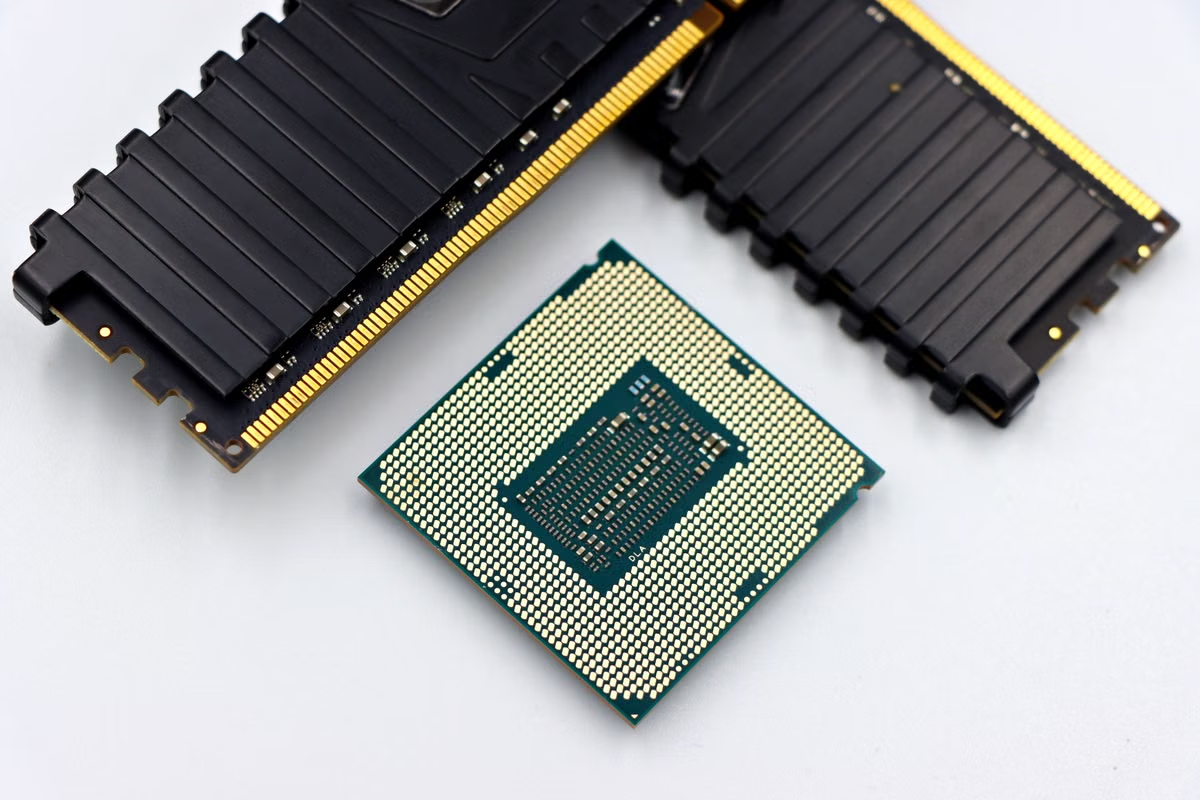
Apple Activity Monitor shows both a Memory Pressure graph and a Swap Used reading, so you can compare what your Mac is doing instead of guessing from app count (Apple’s guide to viewing memory use). If you intend to run Xcode 27, Simulator, Claude Code, and local AI together, choose 32GB; choose 16GB if you’ll keep parallel work light or use cloud AI instead of running a model locally. The actual difference depends on your project, simulator setup, and model workload; without a controlled comparison, no fixed speedup is justified.
This guide is for iOS developers choosing whether to buy or rent a 16GB or 32GB Mac.
It’s also for teams running Xcode 27, Simulator, and Claude Code side by side.
If you want local AI in that same workflow, the sections below show how to check whether memory is your limiting factor.
Last updated: July 7, 2026. Check Xcode release status and supported macOS versions against Apple’s Xcode system requirements. The linked references explain the tools and measurement signals; they do not provide a controlled 16GB-versus-32GB benchmark for your project.
16GB or 32GB: what changes when everything runs together?
The decision is about concurrency, not whether either configuration can open Xcode. An IDE, one or more simulators, a code assistant, and a local inference runtime can compete for memory at the same time. A single app test doesn’t tell you how that combination behaves.
The key distinction is where the AI model runs:
- Cloud AI: Claude Code’s model interaction is not the same workload as running a model locally on your Mac. Your Mac still runs the development tools and client, but it doesn’t hold the remote model’s inference workload in local memory. Network quality and the service’s availability become separate considerations. See the Claude Code getting-started documentation for its setup and usage context.
- Local AI: The model runtime and its working data use resources on the Mac. Model choice and generation settings can change the load. The MLX-LM documentation and its generation configuration illustrate why a model name alone does not describe the full workload.
That difference drives the recommendation. With cloud AI and a restrained number of open development tasks, 16GB may be a reasonable fit if your measurements stay comfortable. Add local inference to an already busy Xcode and Simulator session, and 32GB gives the system more memory headroom. That is a capacity argument, not a promise that every action will become faster.
Also verify Xcode 27’s release status and compatibility before making an installation plan. The official requirements page is the place to check the version and supported macOS releases. Don’t infer requirements from a future feature description or a report that has not been confirmed by official documentation.
Read the signs on a 16GB Mac before it becomes a bottleneck
A 16GB Mac may be adequate for a modest project, a limited simulator setup, and cloud-based assistance. It becomes less predictable when those tasks overlap with other memory-heavy apps or local inference. Look for changes across a real work session, not a single screenshot taken just after launch.
Use Activity Monitor’s Memory view and note the indicators Apple documents: the Memory Pressure graph, memory used, cached files, and Swap Used. The Activity Monitor memory guide explains where to find them. Interpret the signals together:
- Memory Pressure rises and stays elevated: The system has less room to satisfy active memory requests comfortably. A brief change during an app launch is less useful than pressure that remains high while you work.
- Swap Used grows during ordinary work: macOS is using storage to support memory needs. Swap alone does not prove a problem; look for whether it continues increasing alongside sluggish switching or pauses.
- App switching becomes less responsive: If returning to Xcode or a simulator repeatedly causes visible delays during the same workload, record when it happens and compare it with the memory readings.
- Build or simulator behavior changes under load: Capture the task result and conditions. Don’t assume memory caused a longer build unless other factors, such as project state and background activity, are held steady.
Several simulators can raise the combined load, but there is no universal “safe” count. Simulator runtimes, device types, app state, and your project all matter. Apple’s guide to running apps on simulated or physical devices explains the development workflow; it does not establish a memory allowance for every simulator combination.
A useful first response on 16GB is operational rather than theoretical: close idle apps, shut down simulators you aren’t using, and repeat the same work. If pressure and swap settle and the workflow stays responsive, you may not need more memory for that pattern. If you have to keep interrupting work to regain responsiveness, the configuration is forcing compromises.
Compare memory, swap, response, and task results
A fair comparison needs the same Mac generation, macOS release, project checkout, Xcode version, simulator devices, and AI settings. If you compare different machines or change the model between runs, you can’t isolate the effect of memory. Record the conditions before interpreting the results.
Use this repeatable process:
- Define a normal work session. List the project, build action, simulator devices you actually use, other open apps, Claude Code tasks, and whether local AI is running. Keep cloud and local AI as separate test cases.
- Record the starting state. Before each run, close unrelated workloads and note the macOS and Xcode versions. Check that you’re using the same project state and the same simulator setup.
- Run the full workload. Open the IDE, start the intended simulators, and perform the same coding-assistant and local-model tasks. Don’t add a model to one run and treat the result as a memory-only comparison.
- Observe the indicators during the busy period. Note Memory Pressure, Swap Used, and any visible delays when switching apps. A reading after the workload has finished may miss the period that matters.
- Repeat and compare task outcomes. Record build or simulator task results alongside the memory indicators. If the difference appears only in memory pressure but not in the work you care about, that is still useful—but it is not proof of a faster build.
Don’t turn a single run into a benchmark claim. If the project, simulator set, model settings, or background apps differ, report the result as an observation about that setup—not as a general 16GB-versus-32GB rule.
For local AI, record the runtime, model configuration, and generation settings. MLX-LM’s generation options are a reminder that model operation is configurable; the same model label does not guarantee the same resource use. Apple’s overview of machine-learning technologies provides platform context, but it does not replace a test of your chosen model alongside your development session.
What 32GB can improve—and what it cannot prove
With the same workload, the most defensible expectation is more room for concurrent processes. If a 16GB session shows persistent pressure, rising swap, and slower switching, a 32GB configuration may reduce that contention. Confirm the result on your own project rather than turning “may reduce contention” into a guaranteed performance claim.
For Xcode 27 and Claude Code, the experience to watch is continuity: can you move between the IDE, simulator, terminal, and assistant without closing tasks or waiting for the system to recover? If local AI is also active, check whether its workload coincides with the pressure or response changes. That helps separate a memory problem from a network delay or a slow task unrelated to RAM.
Memory capacity does not establish a proportional improvement in build time. A build can be limited by CPU work, storage, project structure, or other factors. Likewise, a simulator task may be constrained by the particular app or runtime rather than available memory. Compare elapsed results, but report them only with the machine, software, project, simulator count, model, and settings attached.
If 32GB shows lower pressure but identical task completion times, it may still make a busy session easier to manage. If both configurations remain responsive and swap behavior does not interfere with your work, the extra capacity may not change your day-to-day results enough to justify the cost. Your decision should reflect the workload you need to keep open, not a general assumption that more memory always makes every task faster.
Choose by workload, not by a single app
Use these conditions as a decision tool. They are meant to classify your own workflow, not to predict a universal memory threshold.
- Choose 32GB if you regularly keep Xcode 27, multiple active Simulator devices, Claude Code, and a local AI runtime open together. The same applies if your measurements show sustained pressure or growing swap during ordinary work and reducing background tasks is not acceptable.
- Choose 16GB if you mostly use cloud AI, keep the simulator workload limited, and your normal work session remains responsive without persistent memory-pressure symptoms. Recheck after adding a larger project or changing the apps you keep open.
- Choose 32GB if local AI is a required part of the development session, but test your intended model and settings first. The model configuration affects local load, so don’t decide from a model’s name alone.
- Stay with 16GB—or reduce the concurrent workload—if local inference is occasional, simulators are opened only when needed, and your measured session doesn’t show memory-related interruptions.
A practical scene: you edit in Xcode, keep a primary simulator available, and ask Claude Code for help while using cloud AI. If you can close idle apps and your readings remain stable through a build and app switch, 16GB can fit that narrower workflow. Now add extra simulator devices and local inference that runs during the same session. If that combination pushes memory pressure up and swap continues to grow, 32GB is the safer choice for keeping the work parallel.
If you’re uncertain, test the busiest representative session—not your lightest day. Include the project you maintain, the simulators you genuinely need at once, and the model settings you plan to use. If you can’t run a same-device comparison, treat any decision as a workload-based estimate, not a measured claim.
FAQ: common configuration decisions
Can 16GB handle Xcode 27 with several simulators open?
It can, but whether it remains comfortable depends on the project, simulator runtimes, and what else is open. Watch Memory Pressure and Swap Used in Activity Monitor while building and switching between your actual devices. If pressure stays elevated or swap keeps growing during normal work, reduce simultaneous simulators or choose 32GB rather than assuming every project will behave the same way.
Does 32GB make Claude Code faster alongside Xcode 27?
More memory can give the IDE, simulator, and other processes more room, which may help avoid pressure-related slowdowns. It does not prove that Claude Code itself will complete a task faster. Claude Code uses a remote service for its model interaction, so network conditions and the task also matter. Compare the same workflow on the same project before attributing a speed change to RAM.
Will local AI force a 16GB Mac to use swap while Xcode is open?
Not in every setup. Model size, quantization, context length, generation settings, and the available runtime all affect local inference memory use. Run your real model alongside your normal Xcode workload and monitor Memory Pressure and Swap Used. If swap rises and app switching becomes less responsive, reduce the model workload or move to a 32GB configuration.
How much faster is a 32GB Mac for builds and Simulator tasks?
There is no reliable universal percentage without a controlled, same-machine comparison of the exact Mac, operating system, project, simulator count, and AI workload. Extra memory can reduce contention when the 16GB setup is under pressure, but it does not automatically accelerate a build that is limited by CPU, storage, or project configuration. Measure elapsed task results as well as memory indicators.
Before committing, match your actual task list against what you can measure: Xcode 27, active simulators, Claude Code, and whether local AI must run at the same time. A current setup that depends on a shared remote environment may involve network delay, less control over the exact machine, and interruptions when that environment is unavailable; a local Mac avoids those dependencies but requires you to provide and maintain the hardware. If you need a temporary, consistent development environment rather than buying a Mac first, review the Mac rental options and use cases and verify the published configuration and service details for your needs. You can also review Kvmzen’s Mac options before comparing a remote setup with local hardware. Renting from Kvmzen makes more sense for a defined test or short-term workload than for permanent heavy use or work that depends on physical ports; for the latter, compare buying and running a local Mac instead.
Frequently asked questions
Can 16GB handle Xcode 27 with several simulators open?
It can, but whether it remains comfortable depends on the project, simulator runtimes, and what else is open. Watch Memory Pressure and Swap Used in Activity Monitor while building and switching between your actual devices. If pressure stays elevated or swap keeps growing during normal work, reduce simultaneous simulators or choose 32GB rather than assuming every project will behave the same way.
Does 32GB make Claude Code faster alongside Xcode 27?
More memory can give the IDE, simulator, and other processes more room, which may help avoid pressure-related slowdowns. It does not prove that Claude Code itself will complete a task faster. Claude Code uses a remote service for its model interaction, so network conditions and the task also matter. Compare the same workflow on the same project before attributing a speed change to RAM.
Will local AI force a 16GB Mac to use swap while Xcode is open?
Not in every setup. Model size, quantization, context length, generation settings, and the available runtime all affect local inference memory use. Run your real model alongside your normal Xcode workload and monitor Memory Pressure and Swap Used. If swap rises and app switching becomes less responsive, reduce the model workload or move to a 32GB configuration.
How much faster is a 32GB Mac for builds and Simulator tasks?
There is no reliable universal percentage without a controlled, same-machine comparison of the exact Mac, operating system, project, simulator count, and AI workload. Extra memory can reduce contention when the 16GB setup is under pressure, but it does not automatically accelerate a build that is limited by CPU, storage, or project configuration. Measure elapsed task results as well as memory indicators.